Pachli 3.6.0 is now available. This release adds an option to make links in posts more accessible by underlining them, improves the UX managing drafts and scheduled posts (including adding them to tabs), improves how posts are displayed, and fixes some potential crashes.
New features and other improvements #
Underline links for accessibility #
Julie Moynat suggested (#2045, their first contribution to Pachli) it should be possible to underline links in posts to improve their accessibility.
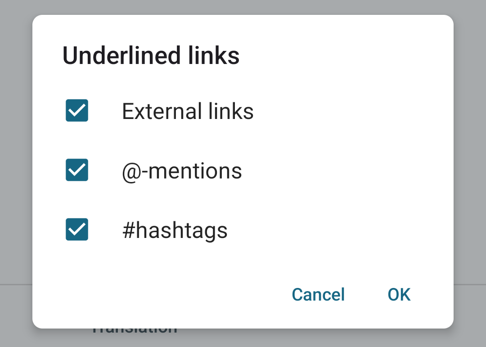
This was implemented in #2247. You can now choose to underline any or all of:
- Links
- @-mentions
- #hashtags
in posts, with the new “Preferences > Underlined links” setting.
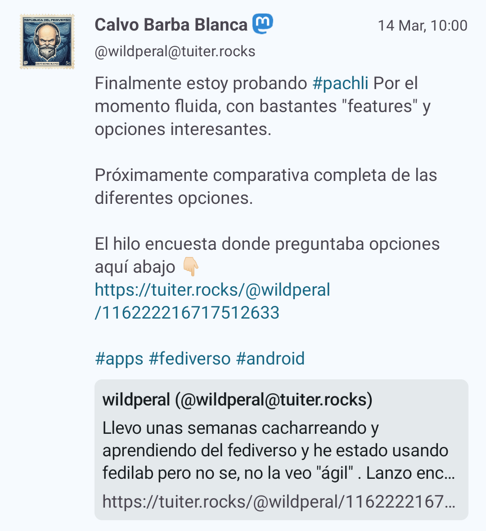
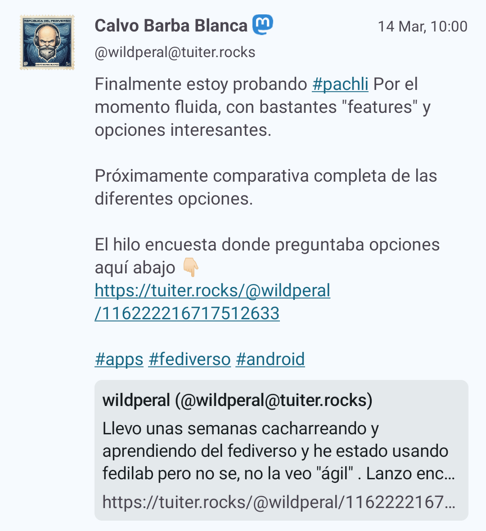
These screenshots show the before and after on a typical post.
Creating and managing “Drafts” #
“Drafts” are posts you’ve written but haven’t sent yet. Also, if sending a post failed for some reason a copy is saved as a draft.
Mastodon doesn’t support this, so drafts are saved locally on your device until you’re ready to send them.
The user experience for creating and managing drafts has changed significantly in this release.
Accessing drafts #
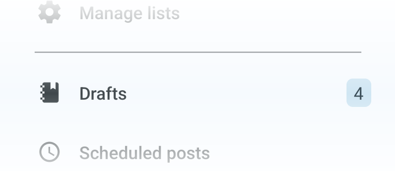
The “Drafts” entry on the main menu now shows you how many drafts are on your device (#2225)
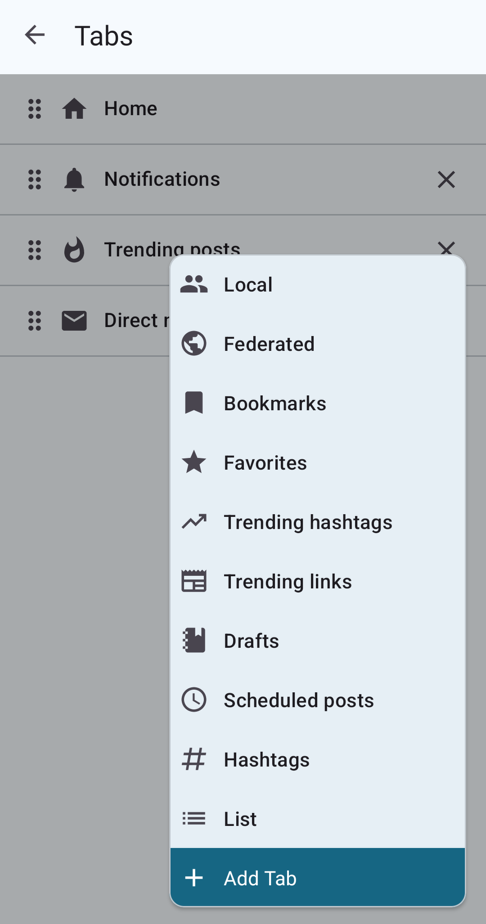
If you frequently create and manage drafts you can now add the “Drafts” screen to a tab (just like “Notifications”, “Bookmarks”, etc) (#2250). This feature was suggested by @kaybee335@fosstodon.org in this Mastodon thread.
To do this use the “Add to tab” menu on the “Drafts” screen.

Or use “Account preferences > Tabs”.
Managing drafts #
The previous UI for showing drafts showed each draft in a list with buttons to edit or delete the draft. This meant the tap-areas to edit a draft was quite small, and the button to delete a draft was next to the button to edit a draft, making it easy to accidentally delete a draft when you wanted to edit it.
When support for creating multiple posts at once was introduced it also became (inadvertently) possible to edit the same draft multiple times.
Now:
- Tap a draft to edit it.
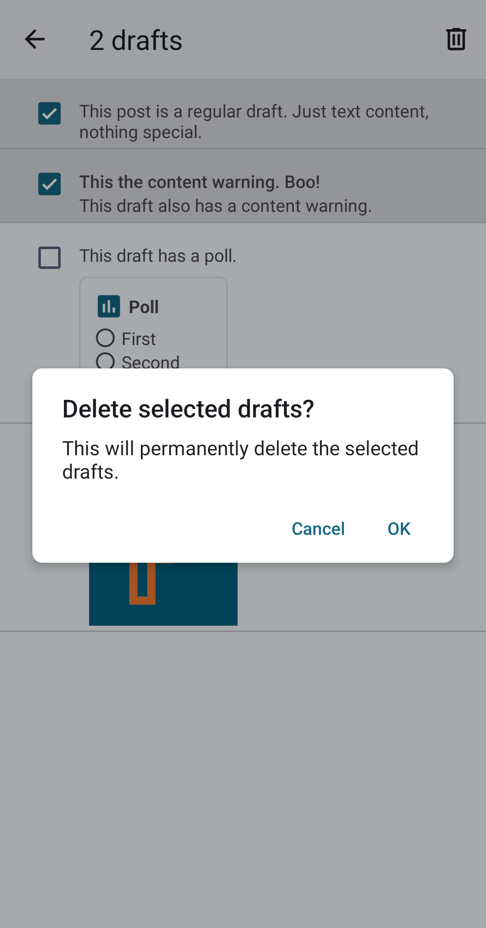
- Tap the checkbox next to a draft to select it. You can select multiple drafts at once. When you do this the toolbar at the top of the screen shows you how many are selected and includes a menu to delete the selected drafts.
In this screenshot the user has selected the first two drafts, and tapped the “Delete” menu item at the top right. A dialog box to confirm deletion is displayed.
Sending indicator #
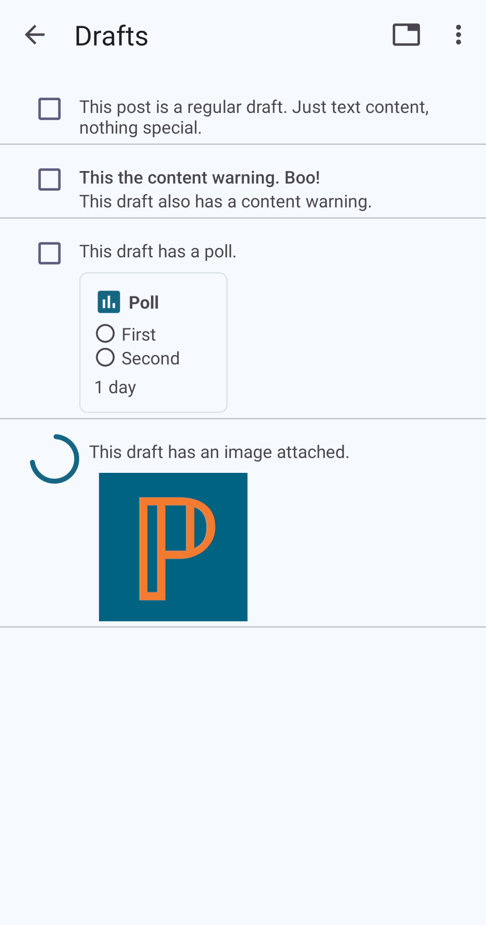
While a draft is being sent it can’t be selected or edited. This is shown with a spinning progress indicator, replacing the checkbox.
Sending failures #
Previously, if a draft couldn’t be sent Pachli would interrupt what you were doing (on some screens) to tell you the draft failed to send, and the drafts UI would tell you an error occurred.
Now:
- A normal Android notification is created to tell you a draft couldn’t be sent, irrespective of what Pachli screen you are on.
- These notifications are cleared when you open the “Drafts” screen.
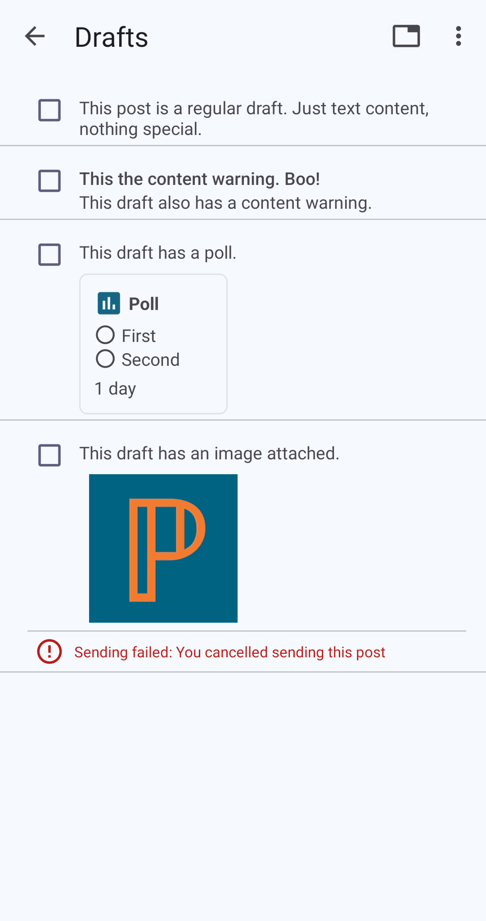
- The specific error that occurred is shown under each draft. This information can be helpful to your server administrators if the error keeps happening.
Editing drafts #
- Saving a draft remembers the cursor position, and restores it when you re-open the draft.
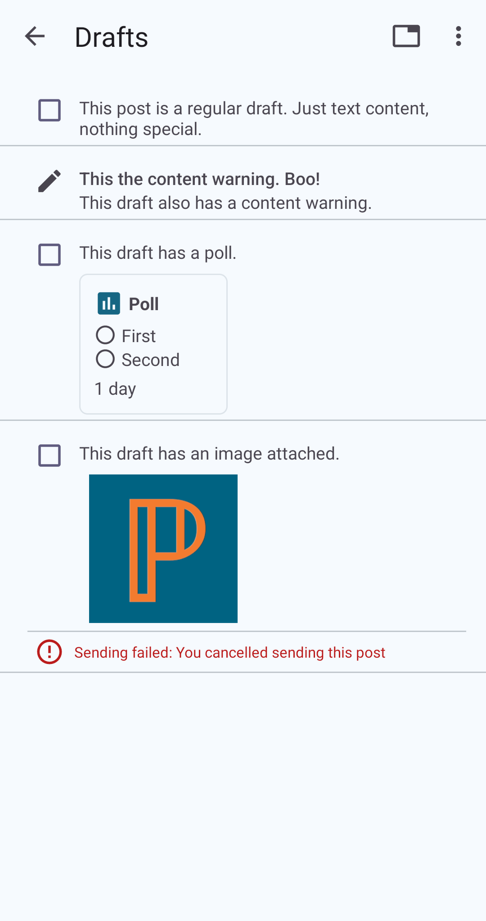
- A draft can only be edited in one screen. If the draft is already being edited it is shown with a “pencil” icon, and tapping the draft will switch to the in-progress edit of the draft, instead of editing it a second time.
In this screenshot the user has opened the second draft to correct the error in the content warning text. While editing the draft they have switched back to the list of drafts.
Creating and managing “Scheduled posts” #
As the name suggests, “Scheduled posts” are posts you’ve written that will be sent at some time in the future.
If your server supports them you write one by setting the scheduling option when writing a post.
The UI for managing scheduled posts has been updated and is now consistent with the UI for managing drafts.
Specifically:
- The “Scheduled posts” screen can now be shown in a tab.
- Scheduled posts are deleted by selecting one or more of them and using the “Delete scheduled post” menu, just like Drafts.
- Tap a scheduled post to edit it. Tapping the same post multiple times switches to the existing editor instead of launching multiple editors, just like Drafts.
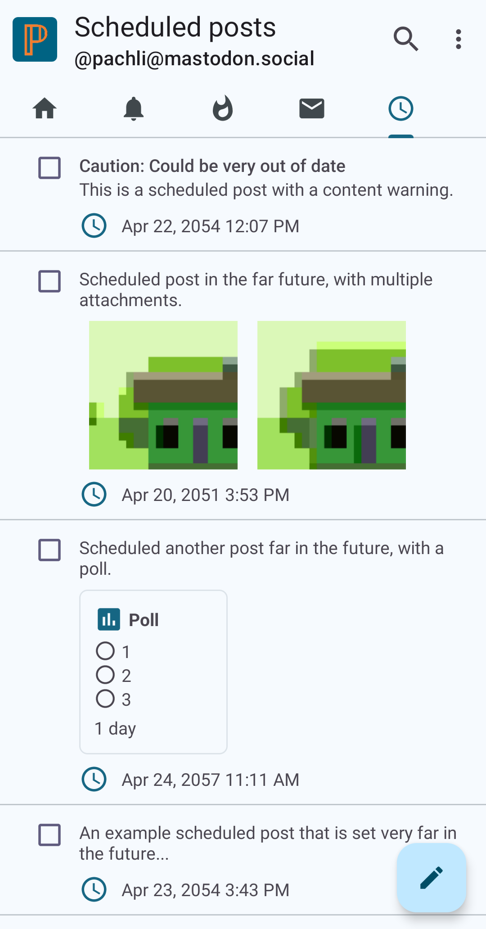
- Content warnings, attachments, and polls in scheduled posts are now shown.
This screenshot shows scheduled posts added to a tab (alongside the default Home, Notifications, Trending, and Conversations tabs). All scheduled posts are selectable, none are selected, and none are being edited.
Updates to translations #
Languages with updated translations are:
- Estonian by Priit Jõerüüt
- Finnish by Kalle Kniivilä
- French by Terry L
- German by Kachelkaiser
- Irish by Aindriú Mac Giolla Eoin
- Norwegian Bokmål by Sunniva Løvstad
- Polish by Łukasz Horodecki
- Slovak by Russssty
- Spanish by Juan M Sevilla
- Tamil by தமிழ்நேரம்
If you would like to help improve Pachli’s translation in to your language there’s information on how you can contribute.
Significant bug fixes #
Encode user content that looks like HTML for display #
@jandi@mastodon.social reported (#2180) account display names could contain HTML characters that Pachli wasn’t displaying. For example, @adriaProgrammer’s display name of </Antir> wasn’t displaying properly.
Fixed in #2245.
Display numbered lists and monospace text in posts #
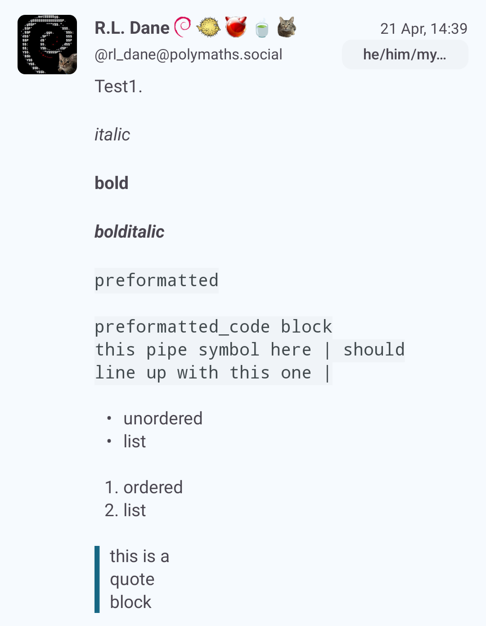
Julie Moynat reported (#2217) a problem displaying posts containing ordered lists (i.e., lists where each item starts with a number rather than a bullet).
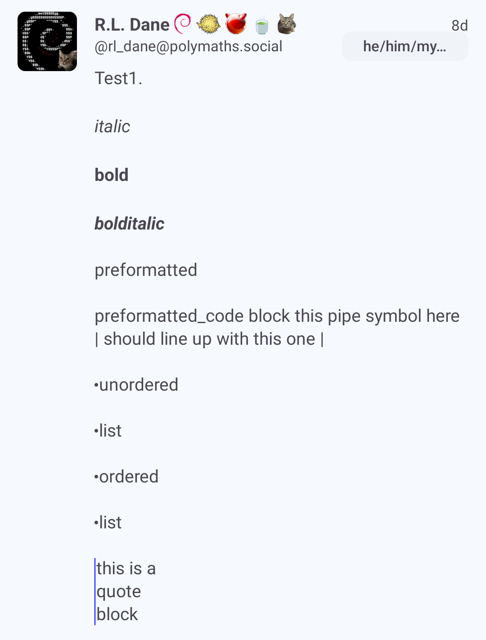
R. L. Dane reported (thread) a similar issue displaying preformatted (monospace) text.
This was an issue with Android’s limited support for converting HTML for display.
Previously this wasn’t a problem because Mastodon only supported a subset of HTML elements, converting any others to that subset on the server.
This changed in Mastodon 4.2.0, but isn’t mentioned anywhere in the Mastodon 4.2.0 release notes.
Pachli now displays these properly.
These screenshots show the before (first) and after (second) display behaviour of an example post by R. L. Dane.
These changes went through a number of iterations and there was very helpful feedback from Pachli Current users, including:
- @dandrumheller@mstdn.social
- @bardmoss@autistics.life
- @mike@thecanadian.social
- @chrisn@mas.to
- @keefmarshall@mastodon.online
Set the attachment description text when viewing media #
Juan M Sevilla reported (#2220) a bug where media descriptions were not always displayed when swiping through media. Fixed in #2239.
Don’t crash when updating media on an existing status #
@jandi@mastodon.social and @keefmarshall@mastodon.online both reported a crash when editing a post.
The crashing code was never in a regular Pachli release, only Pachli Current. By using Pachli Current and reporting problems like this they’ve both helped improve Pachli for everyone else.
Fixed in #2230.
Don’t crash checking user’s sensitive media preference #
A race condition could cause a crash when viewing an account’s posted media. Fixed with #2207.
Don’t crash when removing tabs from the end #
Removing the end-most tab could cause a crash. Fixed with #2206.
Don’t crash when cropping account avatar or header images #
Newer Android devices have additional security restrictions apps must follow when operating on files, and Pachli wasn’t doing this when cropping images if you were changing your account’s header or profile images. This was causing a crash, fixed with #2205.
Thank you #
Thank you to everyone who took the time to report issues and provide additional followup information and screenshots.
Download Pachli 3.6.0 from Google Play, F-Droid, or the GitHub release page.